
You are not buying a laptop for launch day. You are buying it for regular life. Two years from now, you want it to wake fast, handle your tabs and calls, and not feel cramped.
Most laptops feel great in week one. They feel less great in year two. Apps grow heavier. Your browser has more tabs. Updates take more space. Batteries lose capacity. Small choices at checkout can decide whether your laptop keeps up or starts to feel slow.

If you are comparing options, start by looking at current baselines in high-quality laptops and notebooks. Notice the common patterns in RAM, storage, processor generation, and ports. Then think about how you actually use your device each day. That is what should guide your choice.
What “Still Works for You” Actually Means
When people say they want a laptop that lasts, they usually mean something simple. They want it to feel normal. Not blazing fast. Not frustrating, just smooth.
Over time, friction builds in small ways. A few more startup apps. A drive that is almost full. A battery that no longer lasts a full afternoon. None of these break your laptop. Together, they make it feel old.
A laptop that still works for you in two years should do a few things well:
- It handles daily tasks like browsing, email, documents, streaming, and video calls without lag.
- It stays comfortable to use, with a screen you can read and a keyboard that does not tire your hands.
- It connects easily to your Wi-Fi, displays, and chargers without extra adapters.
- It continues to receive security and system updates without hacks or workarounds.
If those boxes stay checked, you will not think about replacing it.
The Core Specs That Age Well
Spec sheets can push you toward extremes. More cores. Higher clock speeds. New labels. That is not always what makes a laptop age well.
Balance matters more than bragging rights. A well-cooled midrange processor with enough memory often feels better long term than a powerful chip squeezed into a thin body that runs hot.
In some cases, a gaming PC might be the better fit rather than forcing desktop-level performance into a slim laptop. And while you may see laptops with AI solutions marketed as the next big thing, those features do not replace basics like RAM, storage, and cooling. Start with fundamentals. Add extras if they match your work.
- Processor Generation Matters: Choose a recent mainstream processor from the current or previous generation. Newer chips often bring better efficiency, not just speed.
- Cooling and Thermal Design: Thin laptops can limit performance if they cannot manage heat. Look for reviews that mention fan noise and sustained performance.
- Realistic Spec Floors: For most people, 16GB of RAM and a 512GB SSD create breathing room for the next two years.
- Avoid Trap Configurations: Be cautious of premium labels paired with 8GB of RAM or a small 256GB drive. Those limits show up fast.
RAM That Keeps You Comfortable: Pick It Once, Regret It Forever
RAM is your laptop’s short-term workspace. When you open tabs, run apps, or join a video call, they all sit in memory. If you run out, the system starts shifting data to storage. That process is slower. You feel it as hesitation.
Underbuying RAM is one of the most common regrets. You can close tabs and manage apps. But you cannot change soldered memory later.
- 8GB Works If: You keep light workloads, limit browser tabs, and avoid heavy multitasking.
- 16GB is the Baseline: For school, remote work, light creative tasks, and years of browser growth, 16GB keeps things smooth.
- 32GB for Heavy Workflows: If you edit large photos, work with audio, code, or keep many apps open at once, extra headroom helps.
- Soldered vs. Upgradeable: If RAM is soldered to the board, you are locked in. If the model allows upgrades, you have more flexibility later.
If you are unsure, lean toward more memory within reason. It often has a greater impact on comfort than chasing a slightly faster processor.
Storage and Why Laptops Feel Slow After a Year
Storage fills quietly. The operating system takes space. Apps install updates. Cloud services sync files in the background. Photos and downloads pile up. A 256GB drive that felt fine at first can feel tight within a year.
When a drive is nearly full, updates can stall. Temporary files stack up. The system has less room to work. That can make the laptop feel slow even if the processor is still capable.
For most people, 512GB is a safer starting point. It gives room for documents, media, app growth, and system updates. If you store large video files or games, consider more. Also check whether the SSD is upgradeable. An accessible M.2 slot can extend the life of your device.
Think about how you use storage today. Then assume you will use more in two years.
Battery Life Two Years Later: Plan for Wear, Not Perfection
Laptop batteries do not stay at 100 percent health forever. Over time, they lose capacity. That is normal. Heat and heavy charging cycles can speed up the decline.
You can expect shorter run times after a couple of years, especially if you use your laptop daily.
- Battery capacity will gradually drop as charge cycles increase.
- High heat and constant full charging can shorten battery life.
- A replaceable battery can extend the useful life of your laptop.
When comparing models, look at battery size in watt-hours. Larger batteries often age more gracefully. Also check whether the battery can be replaced without replacing the entire machine.
If you work unplugged often, battery health should weigh heavily in your choice.

OS Support: The Hidden Deadline Most People Miss
A laptop can have strong hardware and still hit a wall if it loses operating system support. Security updates matter. Driver updates matter. Compatibility matters.
For Windows laptops, check that the processor meets current Windows 11 requirements and is on the supported list. Buying a heavily discounted older model can shorten your update runway. It may run fine today but face limits later.
For Chromebooks, look up the Auto Update Expiration date before you buy. Each model has a set timeline for updates. If the date is close, the long-term value drops.
For Mac laptops, newer Apple Silicon models tend to receive system updates longer than older Intel-based ones. Buying a recent generation gives you a better chance of staying supported for years.
Hardware specs matter. Update support can matter more.
Ports and Wireless That Will Not Annoy You in 2028
Ports do not make headlines, but they affect daily life. The wrong mix means carrying adapters everywhere.
- USB-C Charging Support: Choose a laptop that charges over USB-C so you can use common chargers and power banks.
- HDMI Without Adapters: A built-in HDMI port saves time in classrooms, offices, and hotels.
- USB4 Or Thunderbolt If You Dock: If you use external displays or a desk setup, higher bandwidth ports reduce friction.
- Wi-Fi 6E Minimum: Modern wireless standards help maintain strong connections as routers improve.
Look at the devices you connect today. Make sure your next laptop handles them without workarounds.
Repairability, Upgrades, and Build Quality
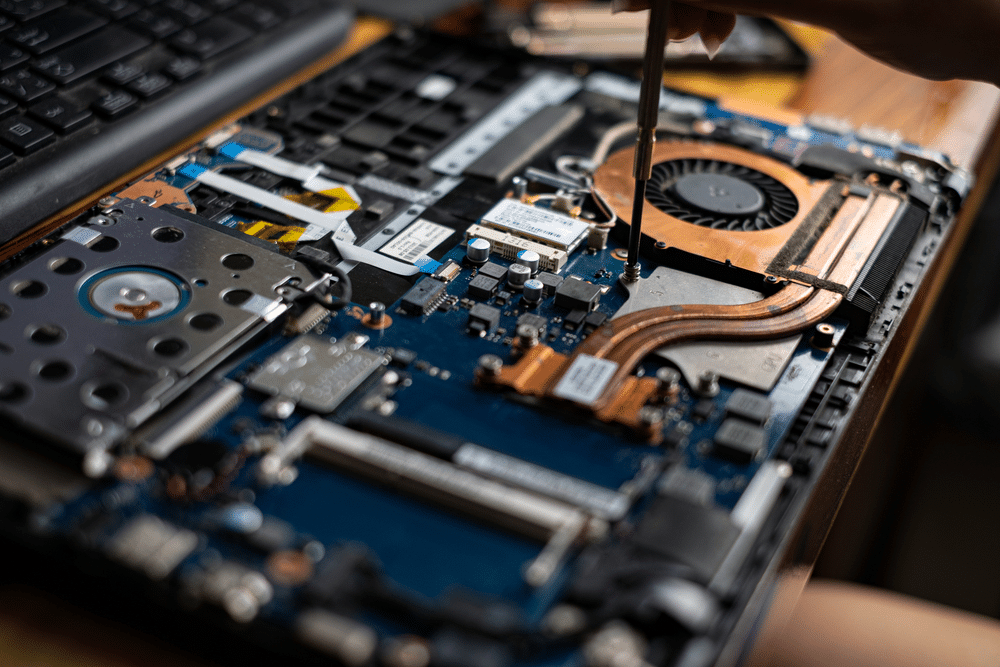
Many laptops are sealed tightly. That can limit upgrades. It can also turn small problems into large expenses.
If possible, choose a model with an upgradeable SSD. Storage needs grow. Being able to swap in a larger drive can extend usability. A replaceable battery can also add years of practical life.
Build quality matters too. Hinges open and close thousands of times. Keyboards take daily pressure. Thin designs can flex more. Read user reviews that mention hinge wear, fan noise, or overheating. Those details often predict long-term comfort better than benchmark scores.
- Check whether the SSD can be upgraded.
- Look for notes about battery replacement.
- Read reviews that discuss hinge durability.
- Pay attention to sustained heat and fan noise reports.
A sturdy build and accessible parts can make the difference between repair and replacement.
Comfort and Privacy Features That Pay Off Every Day
Specs are important. So is how the laptop feels.
- Screen Brightness and Finish: A bright display with good contrast helps in varied lighting. Matte screens reduce glare.
- Keyboard and Trackpad Quality: You use them every day. A shallow or cramped keyboard can wear on you over time.
- Webcam and Microphone Clarity: Clear audio and video matter for work and school calls.
- Biometric and Privacy Features: Fingerprint readers, face login, and physical webcam shutters add convenience and peace of mind.
These details may not show up in performance charts. They shape your daily experience.
Decision Point: When a Desktop Makes More Sense
Portability is powerful. You can work from the couch, a café, or a classroom. But portability has tradeoffs.
Desktops often offer better cooling, easier upgrades, and more performance for the same cost. If you rarely move your device and want maximum longevity and upgrade paths, it is worth comparing options. A clear breakdown of laptops versus desktops can help you think through that choice.
The right answer depends on your space, habits, and priorities. Some people benefit from a strong desktop at home and a lighter laptop for travel. Others need one device that does it all.
The Two-Year Test
Before you click buy, pause. Picture your life two years from now. More files. More apps. More browser tabs. Maybe new software for work or school.
Ask yourself a few simple questions: Does this laptop have enough RAM for growth? Does it have storage room to breathe? Will it stay supported? Does it feel comfortable to use for hours?
You do not need the most expensive option. You need enough headroom. When you choose with that in mind, your laptop fades into the background. It wakes up. It works. And you stop thinking about replacing it.