iLoungeiLounge
  • News
    • Apple
      • AirPods Pro
      • AirPlay
      • Apps
        • Apple Music
      • iCloud
      • iTunes
      • HealthKit
      • HomeKit
      • HomePod
      • iOS 13
      • Apple Pay
      • Apple TV
      • Siri
    • Rumors
    • Humor
    • Technology
      • CES
    • Daily Deals
    • Articles
    • Web Stories
  • iPhone
    • iPhone Accessories
  • iPad
  • iPod
    • iPod Accessories
  • Apple Watch
    • Apple Watch Accessories
  • Mac
    • MacBook Air
    • MacBook Pro
  • Reviews
    • App Reviews
  • How-to
    • Ask iLounge
Font ResizerAa
iLoungeiLounge
Font ResizerAa
Search
  • News
    • Apple
    • Rumors
    • Humor
    • Technology
    • Daily Deals
    • Articles
    • Web Stories
  • iPhone
    • iPhone Accessories
  • iPad
  • iPod
    • iPod Accessories
  • Apple Watch
    • Apple Watch Accessories
  • Mac
    • MacBook Air
    • MacBook Pro
  • Reviews
    • App Reviews
  • How-to
    • Ask iLounge
Follow US

How-to

How-to

How to Activate Dark Mode on Snapchat

Last updated: Jun 10, 2023 9:41 pm UTC
By James Patterson
How to Activate Dark Mode on Snapchat

Dark mode, also known as night mode, has gained immense popularity due to its ability to reduce eye strain caused by blue light emitted from screens. If you prefer a darker interface or want to protect your eyes, you’ll be glad to know that Snapchat offers a dark mode option. Follow the steps below to enable dark mode on both iOS and Android devices.


Setting Dark Mode on Snapchat for iOS (iPhone)

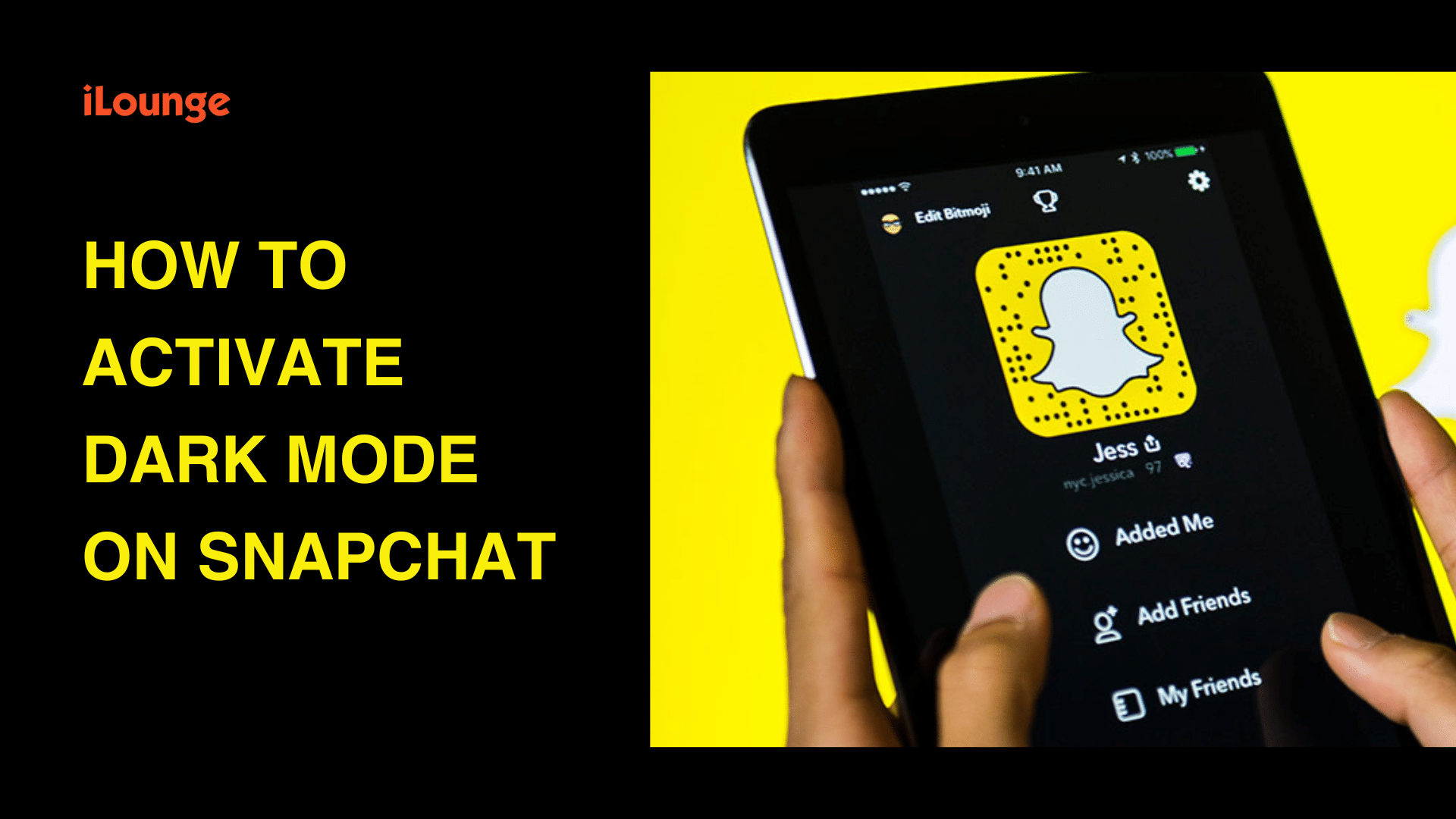
Snapchat introduced night mode to its iOS version in 2021, and activating it is a breeze. Just follow these simple steps:
How to Activate Dark Mode on Snapchat
  1. Open the Snapchat app and tap on the Bitmoji icon located at the top left corner.
  2. Tap on the Settings icon at the top right.
  3. Scroll down and find “App Appearance” under the “My Account” section.
  4. Choose “Always Dark” to enable dark mode.

Enabling Night Mode on Snapchat for Android

Enabling dark mode on Snapchat for Android devices requires a workaround since the official dark mode setting is not yet available. Please note that this method affects other apps on your device as well. Here’s how you can do it:


  1. Open the Settings app on your Android device either by swiping down the notification panel or accessing the app list.
  2. Tap on “Display.”
  3. Select “Dark Mode” or “Enable Dark Theme,” depending on your phone’s interface.
  4. Go back to the Settings menu and tap on “About Phone.”
  5. Tap on “Build Number” seven times to activate the developer mode.
  6. Return to the previous screen and tap on “System” in the Settings menu.
  7. Select the “Advanced” dropdown menu.
  8. Tap on “Developer Options” and scroll down to find “Hardware Accelerated Rendering.”
  9. Enable the “Override Force Dark” option.

Keep in mind that applying the force dark mode setting will change the appearance of other apps without native dark mode support, not just Snapchat. Snapchat has not announced an official night mode for Android yet, so it remains uncertain when it will be available.


Troubleshooting Dark Mode on Snapchat

If you’re using an Android device and the force dark mode option doesn’t work, it may be due to using a newer version of Snapchat that doesn’t support this workaround. This alternative method only works with older builds. Alternatively, you can wait for Snapchat to release an official night mode for Android users. For iOS users, ensure that you have updated the Snapchat app to the latest version.

Enjoy the Benefits of Dark Mode on Snapchat

Enabling dark mode on Snapchat is a straightforward process, particularly on iOS devices. Additionally, you can explore helpful iPhone tips and tricks to enhance your Snapchat experience. For Android users, there are alternative workarounds available to activate a dark theme. Regardless of your device, you can now enjoy the advantages of a darker screen while using Snapchat.

TAGGED: Android, Dark Mode, iPhone, Snapchat
Latest News
The Baseus 100W 3-Port USB-C Charger Is 66% Off
1 Min Read
Rivian Releases Apple Watch App
1 Min Read
macOS 26.3 Hints at 3 Upcoming Apple Products
1 Min Read
iPhone 18 Pro and Pro Max Coming in Red
1 Min Read
The M5 iPad Pro 512GB is $199 Off
1 Min Read
M1 MacBook Air Out Of Stock At Walmart Website
1 Min Read
EverPass and Apple TV Reach Deal Bringing Sporting Content To Bars And Other Places
1 Min Read
C1X Modem of Apple is the First Reported Failure for iPhone Air
1 Min Read
The iPhone Air MagSafe Battery Is $20 Off
1 Min Read
Meta Releasing Smartwatch
1 Min Read
The 2026 Major League Soccer Season Is Near
1 Min Read
Quality of Life Updates For Chrome Added
1 Min Read

iLounge logo

iLounge is an independent resource for all things iPod, iPhone, iPad, and beyond. iPod, iPhone, iPad, iTunes, Apple TV, and the Apple logo are trademarks of Apple Inc.

This website is not affiliated with Apple Inc.
iLounge © 2001 - 2025. All Rights Reserved.
  • Contact Us
  • Submit News
  • About Us
  • Forums
  • Privacy Policy
  • Terms Of Use
Welcome Back!

Sign in to your account

Lost your password?